
Compiling and Decompiling of an Android APK
Pentest Android
Marcel Proust once said:
The real voyage of discovery consists not in seeking new landscapes, but in having new eyes
What if you could see your favorite apps with new eyes—not just how they look, but how they work deep inside? Decompiling an APK is exactly that: a voyage of discovery into the hidden layers of an app’s logic, decisions, and secrets. It’s not just technical—it’s thrilling. Like uncovering a map within a map, it reveals possibilities you didn’t know were there.
This blog will share how I reverse engineer Android apps in details—giving you the tools to learn, explore, and even reshape them.
Preparing the tools and the subject
What we need:
- An Android APK
- Linux Terminal or better Kali Linux/ Parrot OS
apktool
If you have an Android device, pick any apk you like and download it from your device via adb pull. You can also get
an apk from a github repository somewhere. One example is the AllSafe android app, built
intentionally vulnerable for security test challenge.
Make sure apktool is installed. You can install it via the command line :
sudo apt install apktool
Decompile
In this example, I’m taking an apk named APkey.apk. To decompile it, run the following command.
apktool d APKey.apk
Once the de-compilation is successful you will find a directory created with the name of the apk. Inside this directory will contain all the folders structure of an Android APK.
For now, you probably won’t encounter any error using this command but when you are trying to recompiled it back for some reasons, it will throw errors like below.
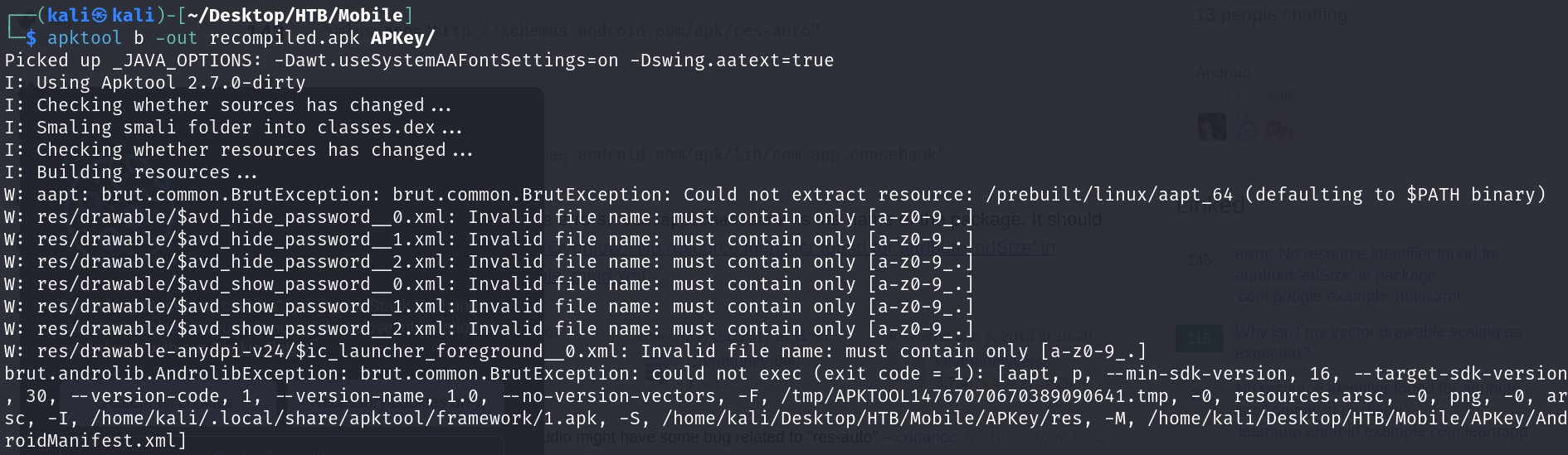
This is making things complicated if we are wanting to install the modified apk into our target device. To overcome this problem, we can use the following command instead.
apktool d -f -r APKey.apk
# -r,--no-res              Do not decode resources.
# -f,--force               Force delete destination directory.
#    --force-manifest      Decode the APK's compiled manifest, even if decoding of resources is set to "false".
Recompile
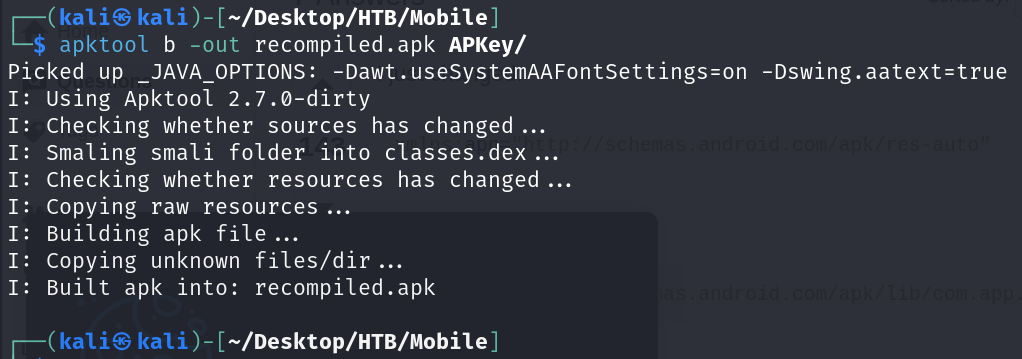
Now if you try recompile the apk again, it will run successfully - hopefully. Use the following command to recompile an apk back.
apktool b -out recompiled.apk APKey/
Alignment
So probably you think now we can simply install the apk into our target radio - NOT YET. You can try install the apk using the following command to see what is the error it will display.
adb install recompiled.apk

You will get error as shown in the picture above.
This is happening because Android requires all the application to be signed before being installed in the device. Self signed or not, it does not matter as long as it is SIGNED. We are going to use a tool named apksigner to do the signing.
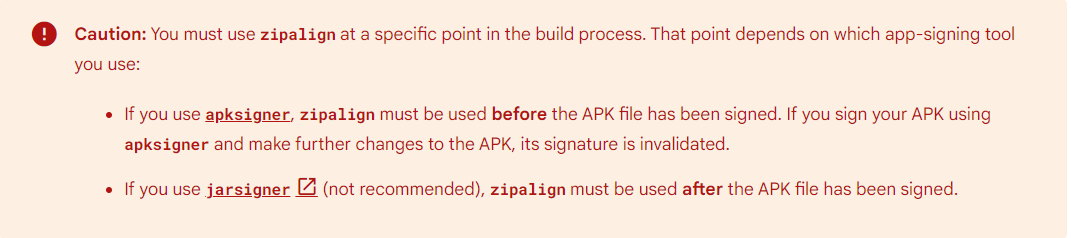
Another thing to keep in mind is that alignment is also important. You can learn more why alignment is needed from here. Or briefly explained here…
How does Zipalign work?
Zipalign ensures that all uncompressed files in the APK are arranged in a way that they can be quickly accessed directly, reducing the need to copy this data in RAM and thus reducing your app’s memory usage1.
Why is Zipalign needed before signing an APK?
When you sign an APK, you’re essentially putting a seal on it to verify its contents. If you make any changes to the APK after it’s been signed, that would invalidate the signature. Zipalign makes changes to the APK to optimize it, so if you signed the APK before running Zipalign, those optimizations would break the signature. That’s why you need to run Zipalign before signing the APK.
You can verify your apk is aligned or not by running the following command.
zipalign -c -v 4 APKey.apk
If everything’s good, it will output Verification SUCCESSFUL, else it will show Verification FAILED.
Now let’s align our apk properly first before we sign it then verify it.
zipalign -p -f -v 4 APKey.apk aligned.apk
If you sign the apk then attempt to install it without alignment, then you will encounter the following error.

Once apk is aligned, we can proceed to create the certificate for signing our application. We use the keytool command to generate a keystore file. I do not recommend you type the -storepass argument in the terminal since it can easily be accessed by people other people - but since this is just a test, we don’t mind.
keytool -genkey -v -keystore ./final.keystore -storepass password -alias finalapk -keyalg RSA -keysize 2048 -validity 10000
The keytool command will prompt you details such as the following.
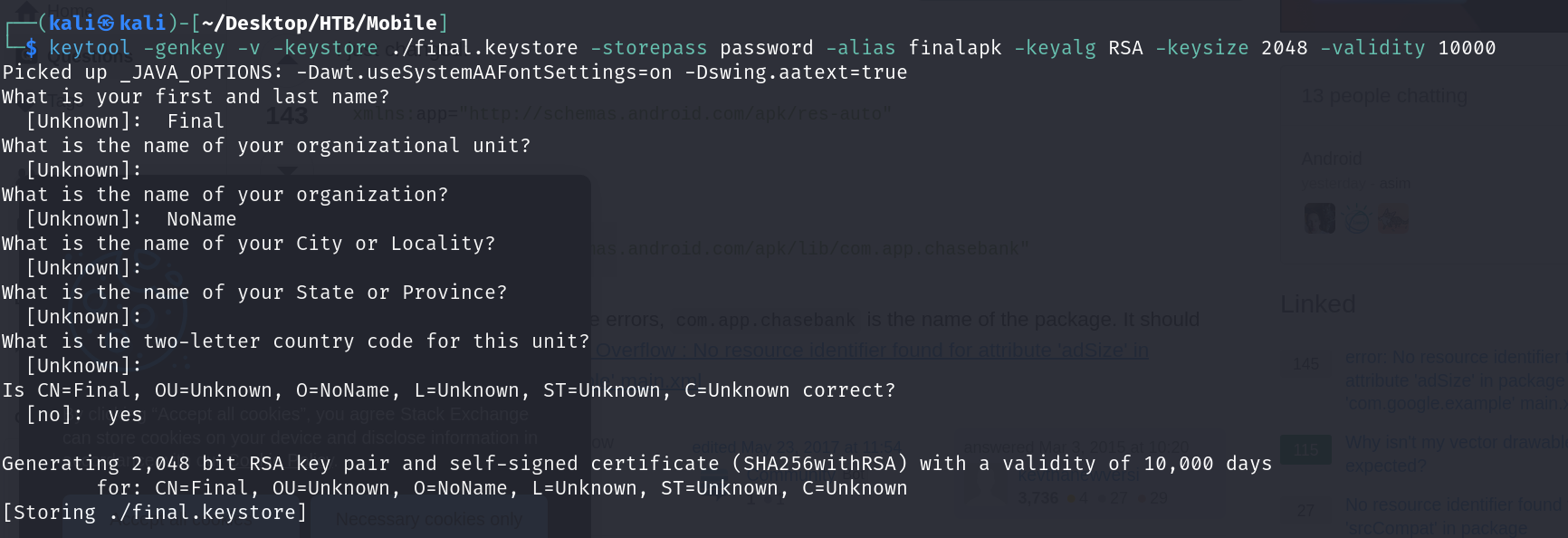
We now have the certificate for the final step which is signing our apk.
Signing The APK
We are going to use the command apksigner. You can learn more about it here. Normally, apksigner is not installed in Kali Linux, you can install it using the following command.
Now to sign our apk, run the following command. When prompted for password, just put the password we used in the keytool earlier.
apksigner sign -v --ks final.keystore -out signed.apk aligned.apk

Installing The APK
At this point, you can just install the apk using
adb install signed.apk
